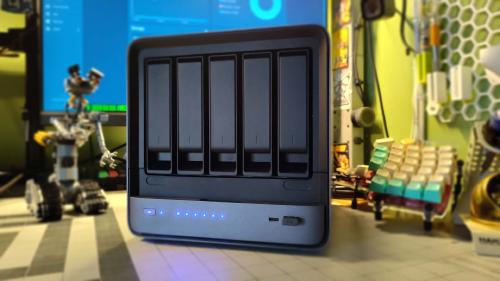
I have a small AMD-based AI setup with 64 GB of system RAM, and that sounds like a lot of memory for an integrated GPU - but it isn’t. Turns out that the GPU doesn’t necessarily get to use all of what’s available.
I’ve been running ComfyUI with ROCm on a Minisforum N5 Pro, which uses an AMD Ryzen 9 HX Pro 370 with an integrated Radeon 890M - running TrueNAS. Unlike a discrete GPU, there’s no pile of dedicated VRAM sitting on the graphics card. The GPU and CPU share system memory.
When upgrading ROCm to the latest release, I noticed ComfyUI reported roughly 30 GB of available GPU memory. I have 64 GB installed. That seemed odd, so I went looking for the limit.
Finding the 30 GB wall
The first thing I discovered was that the roughly 30 GB number wasn’t arbitrary.
The system had:
|
|
The numbers lined up almost perfectly. Linux’s TTM subsystem was limiting the amount of memory available through the GPU’s GTT infrastructure. On this machine, that worked out to roughly half of the installed system RAM. For an integrated GPU, this matters quite a bit.
The Radeon 890M doesn’t have 30 GB of physical VRAM. It’s using shared system memory, and the amount of that memory exposed to the GPU is subject to the kernel’s memory-management configuration. Realizing this gave me something concrete to experiment with.
Pushing memory limits
The TTM pages_limit parameter is expressed as 4 KiB pages. I wanted to try 48 GB:
|
|
TrueNAS provides a persistent kernel-options setting, so I added:
|
|
After a reboot, the system reported:
|
|
and the GPU’s GTT allocation had increased to:
|
|
ComfyUI subsequently reported:
|
|
The GPU now has 48GB available instead of the original 30 GB. The machine didn’t magically acquire 48 GB of VRAM. Instead, I increased the amount of shared system memory that the GPU/ROCm stack could use.
So, did it actually help?
Yes - just not in the way I initially hoped.
One of the things I wanted to test was Wan 2.2 video generation in ComfyUI. With the original ~30 GB memory limit, the workflow would get through the model’s sampling stage and then run out of memory during VAE decoding. Increasing the GTT pool to 48 GB didn’t solve that; the failure simply moved to a larger memory allocation.
The relevant part of the error looked like this:
|
|
In other words, 48 GB wasn’t enough for that particular VAE decode. That was a useful result - it told me that the original 30 GB limit wasn’t the only problem. Wan’s VAE decode has a substantial peak-memory requirement, and increasing the GTT pool doesn’t eliminate that requirement.
I’m not going to pretend that changing one kernel parameter turned an integrated GPU into a video-generation powerhouse. It didn’t - but it did bring the N5 Pro closer to the machine I imagined after unboxing it last summer.
Making the N5 Pro more capable
The increase in RAM available to the GPU is pushing the system to become the inexpensive shared AI workstation I wanted it to be from the moment the review unit arrived.
With the smaller GTT pool, I had to be more conscious about what was occupying memory and which AI workload was running at any given time. The 48 GB configuration allows me to run a reasonably-sized model in Ollama while also having substantially larger models running in ComfyUI workflows at the same time.
This gained flexibility is much more useful to me than getting one particular Wan workflow to complete - and it’s also the difference that makes the distinction between dedicated VRAM and shared GPU memory important to understand before modding your system similarly.
No such thing as free RAM
There’s an obvious catch here - the system only has 64 GB of physical RAM. Giving the GPU a 48 GB GTT pool doesn’t mean I still have that 48 GB of RAM for everything else, too.
TrueNAS needs memory, Docker containers need memory ZFS needs memory and all the fries you can give it, and the GPU workload needs memory. If you’re going to increase the size of the GTT pool, make sure to leave yourself some headroom.
In my case, 48GB is a useful compromise between making the GPU’s shared-memory pool substantially larger and leaving the host enough memory to remain useful as a NAS and container host. Your mileage will vary depending on how much RAM the system has and what type of workloads exist.
Easy Undo
Since this is a TrueNAS system, I didn’t want this to become one of those configurations where six months later I can’t remember what obscure setting I changed. I ended up adding two small scripts to my ComfyUI Docker Image repository:
|
|
The first adds ttm.pages_limit=12582912 to the TrueNAS kernel options.
The second removes the custom setting and returns the system to its default configuration. Both require a reboot because the TTM limit needs to be established when the GPU memory-management subsystem initializes.
Curiosity-based optimizations
I started off wanting to know where that 30 GB number came from, and ended making a configuration change netting a real benefit. Rather than assuming that was simply “what the GPU supports,” I followed the numbers down through the system and once I found the TTM limit, the behavior made sense.
Sometimes the hardware isn’t the limitation you think it is. Sometimes there’s just another layer of the stack quietly deciding how much of the hardware you’re allowed to use. In this case, I found that layer and now my N5 Pro’s integrated GPU has access to 48 GB of shared memory.
It still can’t generate the video I wanted, but it can run ComfyUI and Ollama at the same time without me constantly treating memory like a scarce resource, and I’ll take that as a win.
Contents
Tags
Recent Posts
-
observation
 9/11: 25 Years Later
-
self-hosting
 Bumping Integrated GPU Memory Limits
-
self-hosting
 Containerized ComfyUI with ROCm 10 on the Minisforum N5 Pro Running TrueNAS
-
observation
 Under Our Own Power
-
infrastructure
 What Does “Zero Trust” Actually Mean?
-
What Happens When a CVE Becomes a KEV?
-
The Language We Inherit From Machines
-
DNS Decisions: Recursive, Authoritative, and Forwarding Explained
-
The Real Watermark is You
-
I Like My Web Servers Basic AF