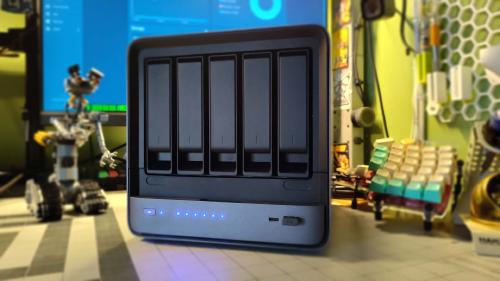
If you have a Minisforum N5 Pro running TrueNAS, there’s a good chance you’ve got a surprisingly capable AI accelerator sitting in your rack that you’re not doing much with.
The N5 Pro’s AMD Ryzen AI 9 HX PRO 370 includes a Radeon 890M integrated GPU. AMD identifies the 890M as an RDNA 3.5 gfx1150 GPU, and ROCm 10 now provides native support for it. After spending some quality time figuring out the right combination of TrueNAS, Docker, ROCm, PyTorch, and the 890M, I’ve got an updated ComfyUI setup with ROCm 10 support that takes only minutes to get up and running - outside a 20 GB download.
  %%{init: {
  'theme': 'base',
  'themeVariables': {
    'primaryColor': '#dbe247',
    'primaryTextColor': '#222222',
    'primaryBorderColor': '#222222',
    'lineColor': '#222222',
    'secondaryColor': '#dbe247',
    'tertiaryColor': '#dbe247'
  }
}}%%
flowchart LR
    N5["Minisforum N5 Pro"]

    subgraph HOST["TrueNAS SCALE"]
        K["Linux Kernel<br/>amdgpu + KFD"]
        D["Docker"]
    end

    subgraph CONTAINER["ComfyUI Container"]
        R["ROCm 10.0"]
        P["PyTorch 2.13/Python 3.13"]
        C["ComfyUI"]
    end

    GPU["Radeon 890M<br/>gfx1150"]

    N5 --> HOST
    K --> GPU
    K --> D
    D --> CONTAINER
    R --> P
    P --> C
    GPU <--> R
The system has an integrated GPU; 890M doesn’t have a discrete pool of VRAM like a Radeon or NVIDIA card sitting in a PCIe slot. ROCm exposes a large portion of the system’s shared memory to the GPU. On my system, ComfyUI reports approximately 30 GB of GPU-visible memory and that’s considerably more interesting than the phrase “integrated graphics” might suggest.
First things first: update TrueNAS
If you’re running an older 25.10 release, update TrueNAS before continuing. I originally tested this on TrueNAS 25.10.3, which shipped with Linux 6.12.33. TrueNAS 25.10.7 updates the kernel to 6.12.105, and that’s important.
With the older kernel, ROCm could see and correctly identify the GPU, initialize PyTorch, and report the expected GPU memory, but the first CPU-to-GPU tensor transfer failed:
|
|
After updating TrueNAS, the same ROCm 10 container successfully transferred tensors to the GPU and ComfyUI could actually generate images. If you’re sitting there wondering why ROCm can see your 890M but ComfyUI won’t actually do anything: Update TrueNAS first. As of this post, TrueNAS 25.10.7 is the current 25.10 maintenance release.
Let Docker do the heavy lifting
I built the environment around AMD’s ROCm/PyTorch container rather than trying to install the entire ROCm stack directly into TrueNAS. Nobody should have a TrueNAS installation with manually installed GPU libraries floating around the place. Instead, the host provides the GPU device interfaces and the ROCm/PyTorch userspace lives inside the container.
|
|
Keep TrueNAS clean; make a mess of everything else. The result is a clean separation of duties between the system and Docker host.
The Docker image
The base image is: rocm/pytorch:rocm10.0_ubuntu24.04_py3.13_pytorch_release_2.13.0 From there, the Dockerfile installs the basic tooling, clones ComfyUI, installs its requirements, and leaves the models and configuration outside the image.
The complete Dockerfile and Compose configuration are available here: comfyui-rocm-n5pro The repository’s main branch contains the ROCm 10 configuration. I’ve also preserved the previous ROCm 7.x implementation in a separate branch for reference and fallback purposes.
Don’t use a GFX override
You’ll find various guides for AMD APUs recommending something along the lines of HSA_OVERRIDE_GFX_VERSION=11.5.0.
Don’t automatically do that here. The Radeon 890M is natively recognized as gfx1150. ROCm 10 has native support for that architecture. AMD’s current ROCm documentation explicitly lists the Radeon 890M among the supported AMD APUs and identifies it as gfx1150, so there’s no reason to pretend the GPU is something else when the current ROCm stack knows exactly what it is.
Docker Compose
The Compose configuration exposes the GPU and maps ComfyUI to port 8188:
|
|
The rest of the configuration - including the persistent volume mappings - is in the repository. Once your setup is running as expected, you can use the same YAML to set up a custom application in the TrueNAS UI. For now, just get things up and running via a Shell session.
Getting up and running
Clone the repository:
|
|
Then:
|
|
Or, for a completely clean build:
|
|
Be patient - the ROCm/PyTorch base image is very large. The first build downloads roughly 20 GB of ROCm/PyTorch layers so the image may take a while to build.
Once the image is built:
|
|
Then:
|
|
ComfyUI should eventually report something along the lines of:
|
|
The HIP runtime version reported by ComfyUI isn’t necessarily the same thing as the ROCm version in the base image, so don’t panic if those numbers don’t look identical.
Test the GPU before blaming ComfyUI
This is probably the most useful troubleshooting trick in the entire project. Before debugging workflows, models, LoRAs, custom nodes, attention implementations, or anything else, test whether PyTorch can actually move memory to the GPU.
  %%{init: {
  'theme': 'base',
  'themeVariables': {
    'primaryColor': '#dbe247',
    'primaryTextColor': '#222222',
    'primaryBorderColor': '#222222',
    'lineColor': '#222222',
    'secondaryColor': '#dbe247',
    'tertiaryColor': '#dbe247'
  }
}}%%
flowchart LR
    A["ComfyUI workflow"] --> B["PyTorch"]
    B --> C["ROCm / HIP"]
    C --> D["amdgpu / KFD"]
    D --> E["Radeon 890M"]

    T["CPU → GPU tensor test"] -.-> C

    X["If this fails,<br/>don't debug ComfyUI yet"] -.-> T
Run:
|
|
You want to see:
|
|
If that works, you’ve established that the basic ROCm → PyTorch → GPU memory path is functional, and it’s time to start troubleshooting ComfyUI. If it doesn’t work, don’t waste your time rebuilding ComfyUI workflows. The problem is below ComfyUI.
Models and LoRAs
The container keeps the important ComfyUI directories on the TrueNAS file system.
Your checkpoints, VAEs, LoRAs, ControlNets, custom nodes, inputs, outputs, and ComfyUI user configuration all survive container rebuilds. The Compose file maps these directories outside the containers so the Docker image can remain disposable. This comes in handy if you’re swapping out ROCm versions and tuning your setup, allowing you to throw away containers without potentially losing several hundred gigabytes of models.
Low-power local AI FTW
The N5 Pro isn’t going to replace a high-end discrete GPU for serious AI workloads, but a compact AMD APU with a large shared memory pool, sitting in a TrueNAS box you already own, can make for a surprisingly capable local image-generation setup without making your power bill enemy number one.
Subjectively, the new ROCm 10 environment feels better than my previous ROCm 7.x setup. I didn’t run any before/after tests or have any metrics to support that statement - the work wasn’t about performance. An up-to-date system was more important than achieving performance gains. I am seeing a decrease in iteration/second times of ~10it/s instead of ~14it/s though, and that’s a nice bonus.
If you have an N5 Pro sitting around running TrueNAS, this is the configuration I’d start with. The complete Dockerfile and Compose configuration are available in the GitHub repository:
https://github.com/Foundry81/comfyui-rocm-n5pro
Go make your NAS generate some stupid pictures.
Contents
Tags
Recent Posts
-
observation
 9/11: 25 Years Later
-
self-hosting
 Bumping Integrated GPU Memory Limits
-
self-hosting
 Containerized ComfyUI with ROCm 10 on the Minisforum N5 Pro Running TrueNAS
-
observation
 Under Our Own Power
-
infrastructure
 What Does “Zero Trust” Actually Mean?
-
What Happens When a CVE Becomes a KEV?
-
The Language We Inherit From Machines
-
DNS Decisions: Recursive, Authoritative, and Forwarding Explained
-
The Real Watermark is You
-
I Like My Web Servers Basic AF